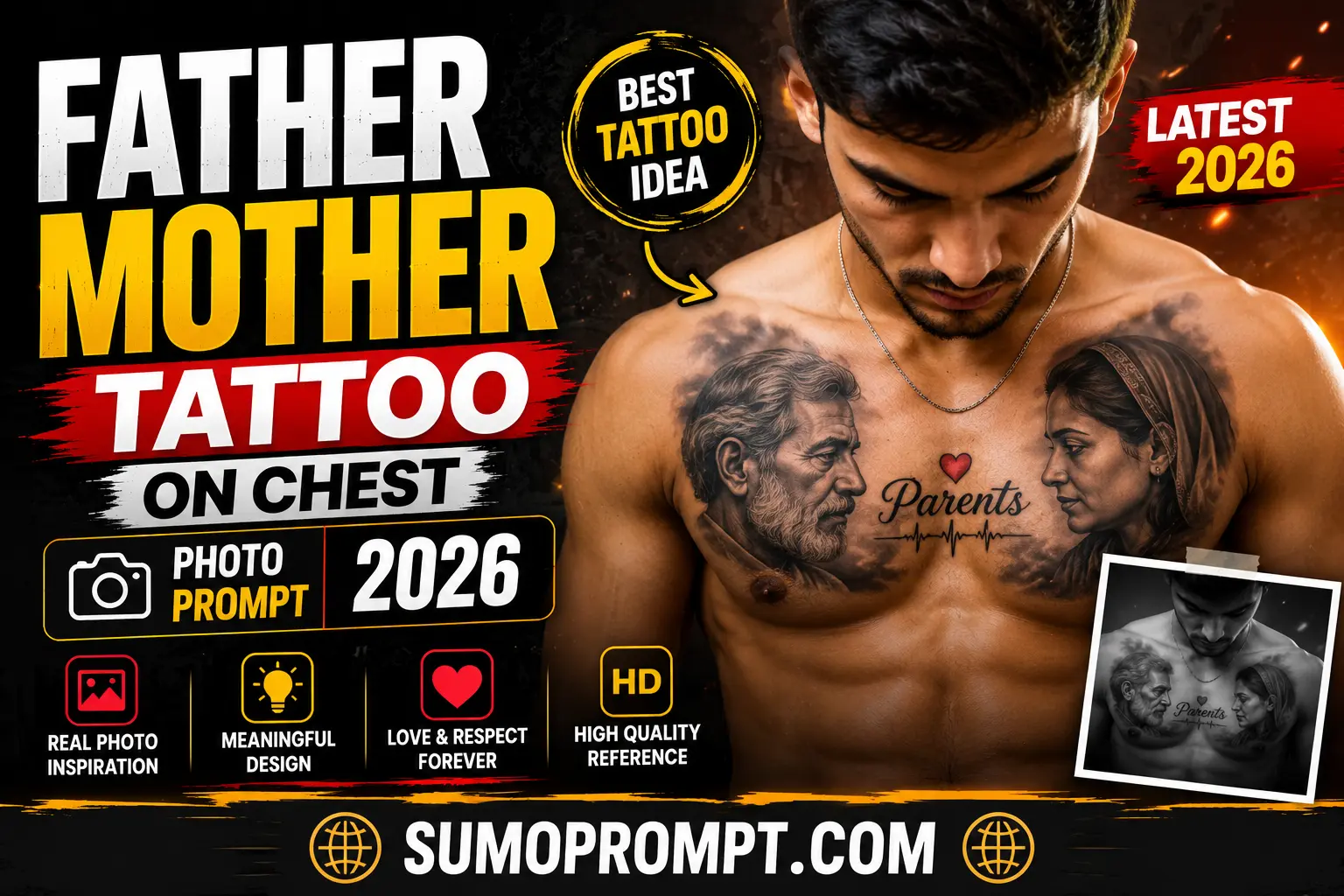
Getting a real chest tattoo of your parents is a big, permanent decision — but a growing number of people are now using AI tools to preview exactly what that tattoo would look like before ever stepping into a studio. This “Father Mother Tattoo on Chest” AI prompt has become one of the most searched tattoo-related prompts this year, mainly because it lets you see a realistic mockup using your own photo and your parents’ photo, without any commitment.
This guide covers what the prompt actually does, a ready-to-use version you can copy, and the small adjustments that make the difference between a realistic result and an obviously fake-looking one.
What This AI Prompt Actually Creates
Instead of generating a random tattoo design, this prompt is built to simulate a realistic tattoo session photo — it takes a portrait (usually of a mother or father) and renders it as if it’s already inked onto someone’s chest, complete with skin texture, natural shading, and studio-style lighting. Some versions go a step further and show the tattoo mid-process, with a tattoo machine visible against the skin, which makes the result look even more like a real, professional tattoo photo rather than a digital illustration.
This is different from a typical “design idea” prompt — the goal here isn’t a flat tattoo sketch, it’s a photorealistic preview of what the finished tattoo would look like on an actual body.
Father Tattoo On Chest
Here’s a base version you can paste directly into Gemini, ChatGPT, or any AI image tool along with a clear photo of the parent you want featured:
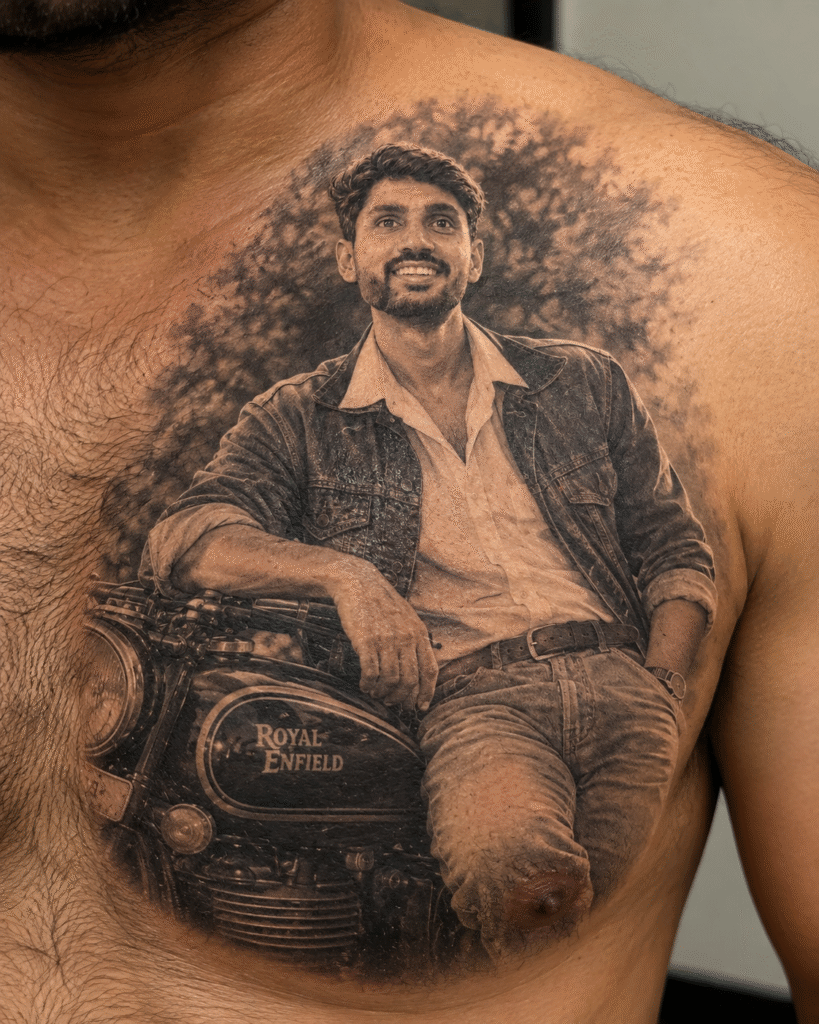
Transform this uploaded portrait into a photorealistic tattoo design placed naturally on a man's chest. The tattoo should be a highly detailed black-and-grey realistic portrait with authentic ink saturation, soft shading, smooth tonal gradients, fine linework, and realistic tattoo texture that follows the natural curve and contours of the chest. Preserve the facial features, expression, proportions, and likeness from the original uploaded photo exactly. Add realistic skin texture, subtle natural lighting, slight skin pores and natural imperfections, realistic ink blending, and correct human anatomy. The tattoo should appear professionally applied to real skin, with natural curvature, depth, and subtle ink diffusion. The final image must look like an actual professional tattoo photograph, not a digital illustration, cartoon, painting, or artificial graphic. Ultra-realistic photography, professional tattoo studio quality, highly detailed, 4K resolution.

Negative prompt: changed face, altered facial features, distorted likeness, cartoon style, digital illustration, painting effect, colored tattoo, unrealistic ink, excessive saturation, blurry details, distorted anatomy, unnatural chest proportions, plastic skin, fake tattoo appearance, harsh shadows, low resolution, watermark.
Prompt Variation: Tattoo-in-Progress Style
If you want the image to look like the tattoo is actively being done (a popular variation right now), use this version instead:
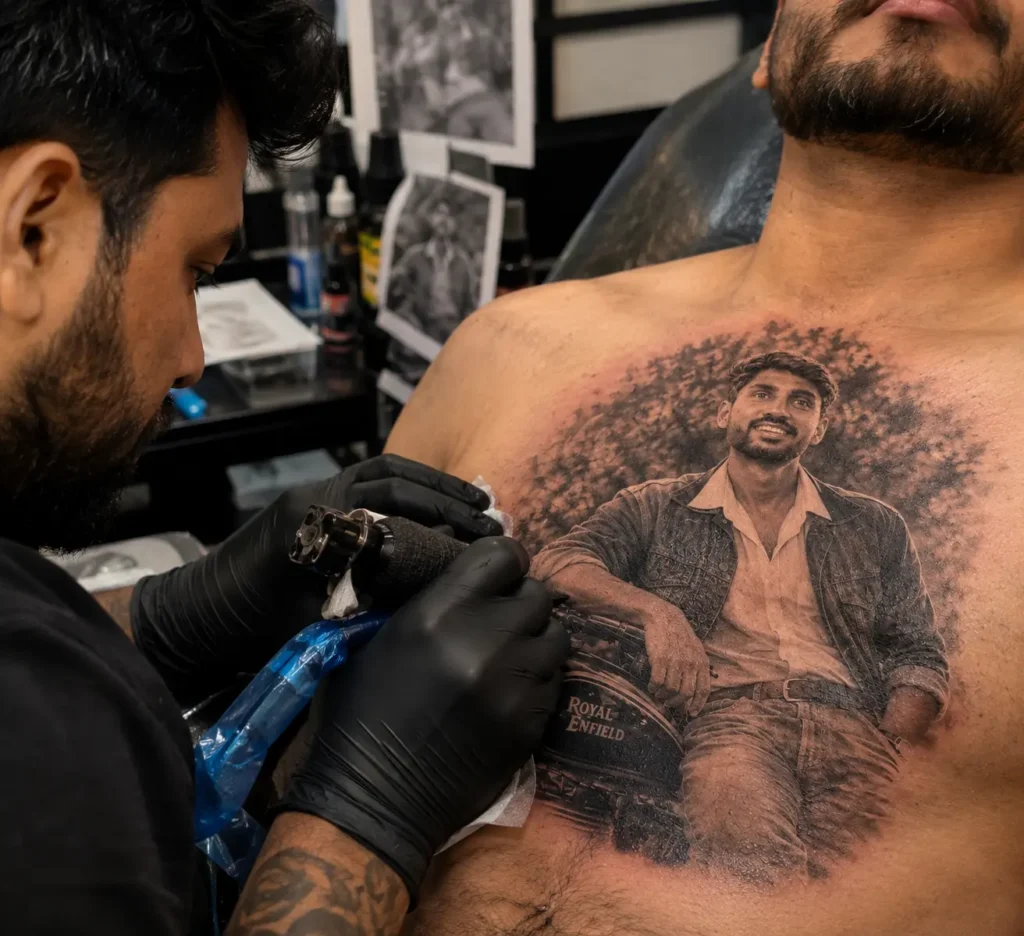
Create a photorealistic scene inside a professional tattoo studio. A skilled tattoo artist is actively working on a highly detailed black-and-grey portrait tattoo on a man's chest, based on the uploaded photo. Show the tattoo artist carefully using a realistic tattoo machine while the needle is naturally touching the skin, with subtle natural redness, fresh ink saturation, and realistic skin texture around the tattooed area.

Preserve the exact facial features, proportions, expression, and likeness from the uploaded photo without changing the identity. The portrait tattoo should look genuinely embedded into the man's skin, following the natural curves and anatomy of the chest with realistic ink depth, fine linework, smooth black-and-grey shading, and authentic tattoo details.

Create a realistic professional tattoo studio environment with tattoo equipment, workstation details, and a natural working atmosphere visible subtly in the background. Use cinematic studio lighting, realistic highlights and shadows, shallow depth of field, natural skin tones, and a documentary-style professional photography look. Capture the moment as if photographed during a real tattoo session with a high-end DSLR camera.

The final image must look like an authentic professional tattoo photograph, with realistic skin pores, natural redness, realistic ink saturation, accurate anatomy, and genuine photographic depth. Avoid any illustration, painting, cartoon, CGI, or flat AI-art appearance. Ultra-realistic, photorealistic, cinematic photography, professional tattoo studio quality, highly detailed, 4K resolution.

Negative prompt: changed face, altered facial features, different identity, distorted likeness, cartoon, illustration, painting, CGI, flat AI-art, unrealistic tattoo, fake skin, plastic skin, excessive redness, excessive blood, distorted anatomy, blurry tattoo details, low resolution, unnatural lighting, oversaturated ink, watermark.
Prompt Variation: Both Parents Together
For a combined tribute design featuring both parents in one tattoo:
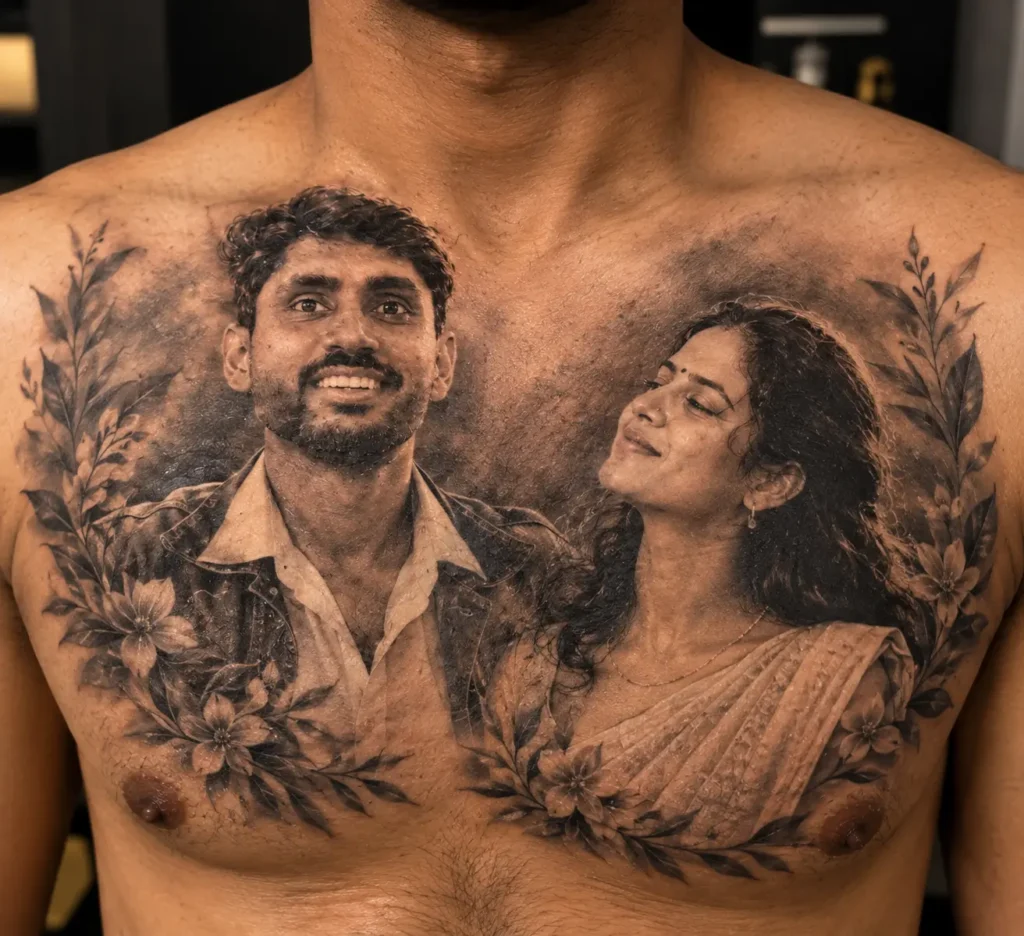
Generate a photorealistic chest tattoo combining two realistic portrait tattoos side by side — one of the father and one of the mother — based on the two uploaded reference photos. Preserve the exact facial likeness, facial features, expressions, proportions, and identity of both people without changing or blending their faces.

Create both portraits in a matching black-and-grey realistic tattoo style with highly detailed fine linework, natural ink saturation, smooth gradients, soft shadows, realistic skin texture, and professional tattoo shading. Make sure both portraits have consistent lighting, contrast, scale, and artistic treatment so they look like part of one professionally designed tattoo composition.

Place the two portraits naturally side by side across the man's chest, following the natural curves and anatomy of the chest. Maintain balanced spacing, proper proportions, and a clean intentional composition, as if the entire tattoo was carefully planned and executed by an experienced professional tattoo artist.

The final result should look like a genuine professional tattoo on real human skin, with realistic ink depth, subtle ink diffusion, natural skin pores, authentic black-and-grey tones, and believable tattoo texture. Use cinematic lighting, realistic photography, shallow depth of field, professional tattoo studio quality, ultra-realistic details, DSLR photography, and 4K resolution.

Avoid any illustration, painting, cartoon, CGI, artificial graphic, or flat AI-art appearance. The final image must look like a real photograph of a professionally completed chest tattoo.

Negative prompt: changed face, altered facial features, different identity, blended faces, distorted likeness, mismatched portraits, cartoon, illustration, painting, CGI, flat AI-art, unrealistic tattoo, fake skin, plastic skin, excessive ink, uneven shading, inconsistent lighting, distorted anatomy, bad proportions, blurry details, low resolution, watermark.
How to Use These Prompts Step by Step
- Choose a clear, well-lit, front-facing photo of the parent (or parents) you want featured — avoid group photos or angled shots, since the AI needs a clean reference.
- Open Gemini, ChatGPT, or your preferred AI image tool and upload the reference photo.
- Paste one of the prompts above, adjusting the wording slightly if you want a color tattoo instead of black-and-grey.
- Generate the image, and regenerate 2-3 times if the first result looks off — this is completely normal with portrait-based prompts.
- Compare a couple of versions and pick the one where the likeness and proportions look most natural.
Getting a More Realistic Result
A few small additions to the prompt can noticeably improve accuracy:
- Add “preserve exact facial proportions, do not alter face shape” if the AI starts changing the likeness slightly.
- Mention “natural chest curvature and realistic body proportions” to avoid a flat, sticker-like tattoo appearance.
- If the result looks too smooth or plastic, add “visible skin pores, natural human skin texture” to counter the overly polished AI look.
- Specify “black and grey realism” or “colored traditional style” clearly, since leaving the style vague often produces an inconsistent mix of both.
Common Mistakes to Avoid
- Using a blurry or low-resolution reference photo. The AI has very little to work with if the source image isn’t clear, which usually results in a distorted or unrecognizable likeness.
- Skipping the “preserve likeness” instruction. Without this, the AI often generates a portrait that only loosely resembles the actual person.
- Overcomplicating the prompt with too many styles at once. Mixing realism, watercolor, and traditional tattoo styles in one prompt tends to confuse the output.
- Expecting a perfect result on the first try. Portrait-accuracy prompts like this one usually need a few regenerations before the likeness feels right.
A Quick Note Before You Get an Actual Tattoo
This kind of AI preview is a great way to visualize placement, size, and style before committing to anything permanent, but it’s still worth taking the final design to a professional tattoo artist for a proper consultation. AI-generated previews are good for exploring ideas, not a substitute for a trained artist’s assessment of how a design will actually age and look on real skin over time.
Frequently Asked Questions
Q1. Do I need a paid AI tool for this prompt to work?
No, this prompt works well with free-tier tools like Gemini. Paid tools may offer slightly more detail, but they aren’t required.
Q2. Why does the AI sometimes change my parent’s face slightly?
This usually happens when the reference photo is unclear or the prompt doesn’t explicitly ask the AI to preserve facial features. Using a sharp, front-facing photo and adding that instruction helps significantly.
Q3. Can I use this prompt to preview a tattoo for a different body part?
Yes, simply replace “chest” in the prompt with the body part you’re considering, such as forearm, back, or shoulder.
Q4. Is it possible to add both parents in one design?
Yes, the combined-portrait prompt variation above is built specifically for that.
Q5. How many attempts does it usually take to get a good result?
Most people get a usable result within 3 to 5 generations, especially once the prompt includes clear likeness and style instructions.
Conclusion
The Father Mother Tattoo on Chest AI prompt gives you a realistic way to preview a deeply personal tattoo idea before making it permanent. With a clear reference photo and a well-structured prompt — one that locks in likeness, style, and realism — you can get a genuinely convincing preview in just a few tries, and use it as a solid starting point for a conversation with an actual tattoo artist.
Also read: Aryan Kelvin Viral Editing Reel VN QR Code Template 2026